- •
Ink Network is EVM compatible, so it can be added to MetaMask as a custom network using the official RPC details. - •
After adding Ink, your wallet address stays the same and balances appear once you switch to Ink inside MetaMask. - •
Ink uses ETH for gas, so keep a small ETH balance on Ink to send transactions and use Ink-based applications.
Ink Network has gained traction as Kraken’s Ethereum Layer 2 built on the OP Stack. With growing DeFi activity, bridge integrations, and liquidity migration from Ethereum and other Superchain networks, users are looking to configure wallet access correctly. Ink does not appear by default in MetaMask, so it must be added manually as a custom network. The setup process takes only a few minutes. Once added, your existing wallet address works on Ink, allowing you to interact with applications, manage assets, and sign transactions like on other EVM networks.
Can I Add Ink Network to MetaMask?
Yes. Ink can be added to MetaMask because it is fully EVM compatible. MetaMask supports any blockchain that follows Ethereum’s execution environment, but only a limited number of networks are preloaded.
Ink must be configured manually using its official RPC details. Once added, MetaMask uses the same wallet address across networks. Your assets will appear after switching to Ink inside the wallet interface.
About Ink Network
Ink is an Ethereum Layer 2 blockchain developed by Kraken and built using the OP Stack. It operates within the Optimism Superchain ecosystem and focuses on financial applications such as lending, trading, and liquidity provisioning.
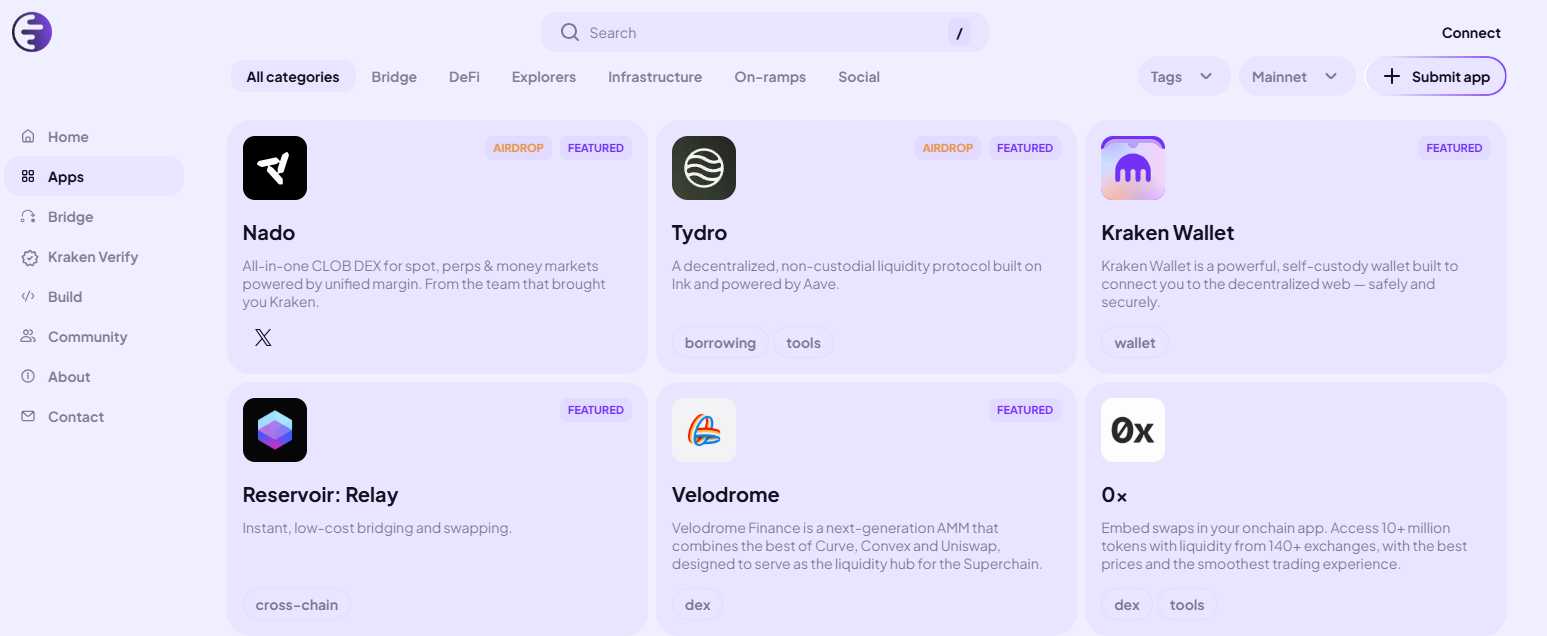
The network targets fast block times and lower transaction costs while inheriting Ethereum’s security model. Ink uses ETH as its native gas asset, which simplifies onboarding for existing Ethereum users. With integrations across DeFi protocols and cross-chain infrastructure, Ink functions as a scaling layer designed for sustained onchain financial activity rather than experimental deployments.
Steps to Add Ink Network to MetaMask
There are two ways to add Ink: manual RPC configuration or a quicker automated method.
Ink Network Details
Before adding Ink manually, verify the official network details. Always confirm this information from official Ink documentation before entering it into MetaMask.
How to Add Ink Network to MetaMask Manually
Manual setup works on both desktop and mobile versions of MetaMask.
How to Add Ink Network to MetaMask (Quick Method)
If you prefer a faster setup, you can use the “Add Ink to MetaMask” button available on this page. Clicking it will trigger a MetaMask prompt with the official Ink network details pre-filled.
Review the information carefully, then approve the request inside MetaMask. Once confirmed, the wallet will automatically switch to Ink.
This method reduces manual input errors and speeds up configuration. Even so, always verify that the request matches Ink’s official network details before approving it.
Download MetaMask for your device




Exploring Ink via MetaMask
Once Ink is added, your wallet address remains the same across networks. After configuration, you can bridge to Ink Network using supported cross-chain tools and view incoming assets directly inside MetaMask. You can then switch to Ink inside MetaMask to view balances, send transactions, and interact with applications.
Ink supports DeFi activity including DEX trading, lending markets, liquidity provision, and cross-chain transfers. Since ETH is used for gas, maintain a small ETH balance on Ink to execute transactions without interruption.
Bottom Line
Adding Ink Network to MetaMask is a straightforward configuration step that enables direct interaction with Kraken’s Layer 2 environment. The wallet address does not change, and assets sent to Ink will appear once the network is added and selected. As with any custom RPC setup, accuracy is critical. Once configured, MetaMask functions on Ink like it does on other EVM networks, allowing you to manage assets, sign transactions, and access DeFi applications through a familiar interface.
FAQs
1. Do I need ETH on Ink for gas fees?
Yes. Ink uses ETH as its gas token, so you need ETH on the Ink network to complete transactions.
2. Are my funds safe if I add Ink later?
Yes. MetaMask uses the same wallet address across EVM networks. Assets sent to Ink will appear once the network is added and selected.
3. Can I use a hardware wallet with Ink on MetaMask?
Yes. Hardware wallets supported by MetaMask, such as Ledger or Trezor, work with Ink after the network is added.
4. What if I send assets to my MetaMask address on Ink before adding the network?
The funds are not lost. They remain associated with your wallet address and will appear once Ink is added and selected in MetaMask.