- •
Katana can be added to MetaMask because it is EVM compatible, but it is not available by default. - •
Users can add Katana either by entering RPC details manually or by using an approved quick add option. - •
Once connected, MetaMask allows access to Katana’s DeFi features, including swaps, vaults, and cross chain activity.
Katana has recently been gaining attention, reflected in its rising TVL as yield farmers look to benefit from the network’s incentive structure. If you are planning to explore Katana’s DeFi ecosystem, the first step is wallet setup. This guide explains how to add to katana using MetaMask in a clear and practical way. Katana does not appear by default in MetaMask, so it must be added as a custom network. The process takes only a few minutes. Once connected, your wallet can interact with Katana applications, manage assets, and sign transactions like on other EVM networks.
Can I Add Katana to MetaMask?
Yes. Katana can be added to MetaMask because it is EVM compatible. MetaMask works with any blockchain that follows Ethereum standards, but only a few networks are preloaded. Katana needs to be added manually or through an automatic option provided by official tools. After the network is added, MetaMask uses the same wallet address, which means your assets will appear once you switch to Katana inside the wallet.
About Katana
Katana is a blockchain designed specifically for decentralized finance. Instead of spreading liquidity across many separate protocols, Katana concentrates activity into core applications. This structure helps improve capital efficiency and keeps the user experience straightforward.
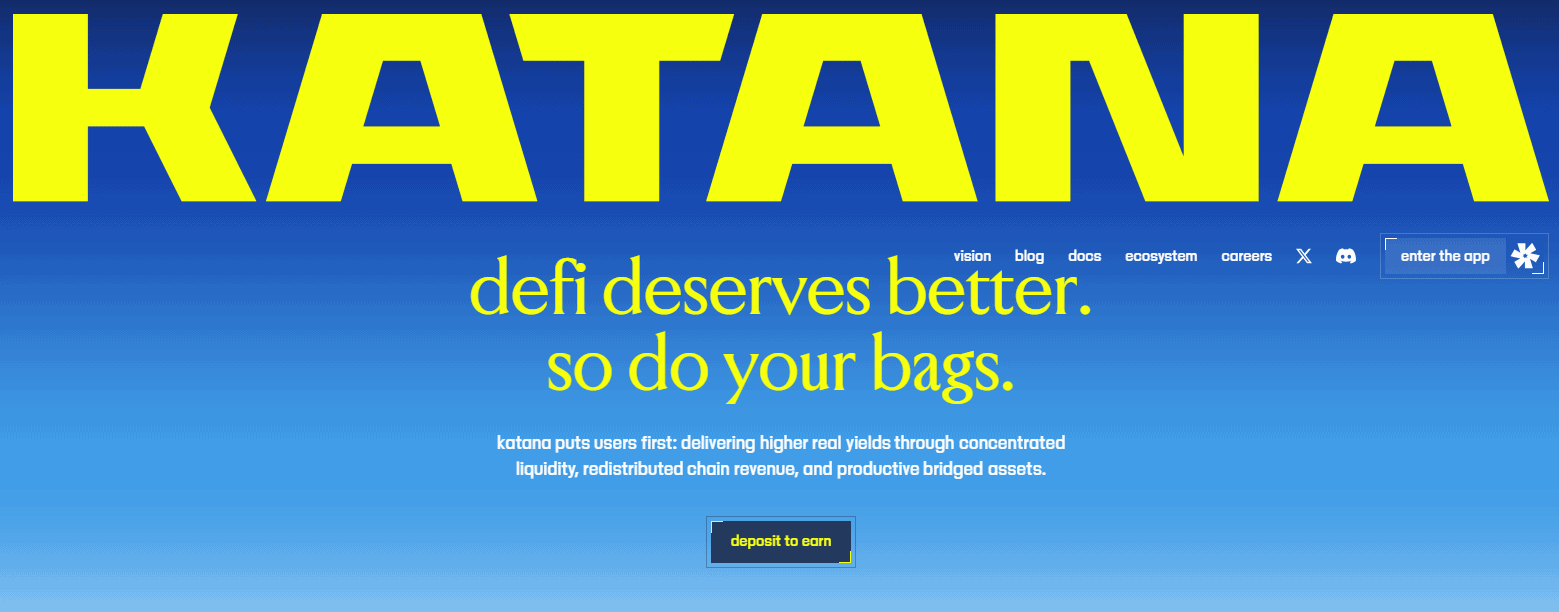
The network supports token swaps, vault based earn strategies, and cross chain transfers from major EVM networks. Katana is built to support long term DeFi usage rather than short lived incentives, making it suitable for users who want consistent access to liquidity, yield tools, and portfolio management.
Steps to Add Katana to MetaMask
There are two ways to add Katana: manual setup using RPC details or a quick automatic method.
Katana Network Details
Before adding Katana manually, you need the correct network information. Always verify these details from official Katana sources before entering them into MetaMask.
How to Add Katana to MetaMask Manually
Manual setup gives you full control and works on both desktop and mobile versions of MetaMask.
Once saved, MetaMask will switch to Katana automatically. You can now interact with Katana applications directly from your wallet.
How to Add Katana to MetaMask Quick Method
Some official Katana tools offer a one click option to add the network to MetaMask. This method fills in the RPC details automatically after you approve the request in your wallet. It is faster and reduces the chance of typing errors. Even with this method, make sure the request comes from a trusted Katana source before approving it.
Download MetaMask for your device



Bottom Line
Adding the Katana network to your MetaMask wallet is a quick step that takes only a few minutes, yet it is a necessary part of accessing the network’s DeFi activity. Once connected, MetaMask acts as the same entry point described at the start of this guide, allowing you to move beyond setup and into actual use. From token swaps to vault based earn strategies and cross chain transfers, Katana functions like other EVM networks once the connection is complete. With correct network details in place, the experience remains familiar while reflecting Katana’s focused approach to decentralized finance.
FAQs
1. Do I need ETH on Katana for gas fees?
Yes. Katana uses ETH as its gas token, so you need ETH on the Katana network to complete transactions.
2. Are my funds safe if I add Katana later?
Yes. MetaMask uses the same wallet address across EVM networks. If assets are sent to Katana before adding the network, they will appear once Katana is added and selected.
3. Can I use a hardware wallet with Katana on MetaMask?
Yes. Hardware wallets supported by MetaMask, such as Ledger or Trezor, work with Katana after the network is added.
4. What if I send assets to my MetaMask address on Katana before adding the network?
The funds are not lost. MetaMask uses the same wallet address across all EVM compatible networks. The assets will simply remain hidden until you add the Katana network and select it as your active network.